Click the Hide Slide option on the context menu to control the visibility of selected slides within your presentation. You can temporarily hide slides you don't need to view or print, and show them again whenever you want. This feature allows you to temporarily hide in‑progress content during development or troubleshooting, and to control visibility for specific users.
It is important to consider the effect of hidden slides in your presentation:
- When editing in Present Pro, the hidden slides can be seen and updated. You can tell which slides are currently hidden by the Hidden icon in the Slides panel (see below).
- At runtime, the hidden slides are not included in the presentation and you cannot navigate to them using the Navigation Options. Hidden slides are also not shown where the Runtime Timer is used to advance through the slides automatically.
- When you print your presentation, hidden slides are always excluded from the printed output.
Note: When a slide is hidden, it's excluded from generated references including Page Numbers and any Table of Contents.
Tip: You can grant access to a hidden slide using the Jump to Slide option. This allows the viewer to access the slide through a jump action or on the Actions context menu, without the slide being added to the main presentation.
Hiding slides in a presentation
Before you begin
You can hide one or more slides when you are creating or updating your presentation, or when you are troubleshooting an issue with a single slide. You can, therefore, typically hide and show your slides at any point in the presentation creation lifecycle.
Hiding a Slide
With your presentation open in Present Pro or Lite:
- Select the slide in the Slides panel and right-click the slide itself (green arrow below).
- From the context menu, select Hide slide.
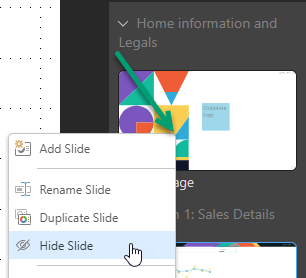
The slide is updated to show the Hidden Slide icon at the top-right of the thumbnail (orange highlight below). The next time you view the presentation at runtime, this hidden slide will be excluded from it.
Limitations
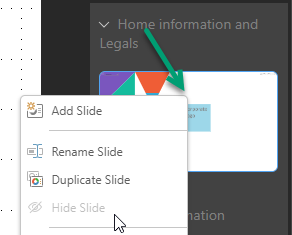
You can't hide every slide in your presentation. Once only one slide remains visible, the Hide Slide option in the context menu is made unavailable:
Showing hidden slides
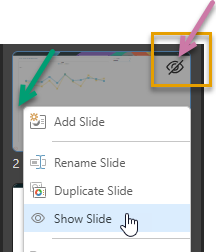
While your slide is hidden, the Hidden Slide icon is shown at the top-right of the thumbnail. If you want to show this slide again (adding it back into the presentation at runtime), you should right-click the slide in the Slides panel and choose Show slide from the context menu:
Related information
Jump to Hidden Slide
You can jump to a hidden slide through a jump action (linking from an image, button, or other element in a non-hidden slide) or on your Actions menu accessed by right-clicking a visual in the presentation. Clicking the link takes you to the slide that isn’t otherwise visible without the slide having to be made visible.